




PCMCIA Card Manual English Handbuch Deutsch Manuel Français Manuale Uso Italiano LINDY Art. Nr. 52000 Version Europe: NOT FOR USE IN France + Spain LINDY Art. Nr. 52002 Version Française


English Manual 1. Introduction The LINDY W-LAN 11 provides a fast and reliable solution for wireless network access. It is compatible with the W-LAN-standard IEEE802.11b and 802.11. The card is a PCMCIA Type II card (16 Bits) and will work with all standard W-LAN wireless networks. It is intended for use in e.g. Historical buildings where no cabled networks can be installed; for the requirements of mobile utilisation within buildings, or to create a general cable-free network (e.g. Internet) access within a specified environment (university, school, hotel, etc). In general it is possible to build up a network connection as peer to peer (Ad-Hoc) between to computers with an installed W-LAN PCMCIA card, between access points (which lets them act as wireless repeaters), or between access points and clients (Infrastructure). The LINDY access point supports roaming functionality, which allows a larger area to be covered by using more than one access point. The range of one access point greatly depends on the conditions of the building (shielding by concrete walls, pillars and girders from steel etc). It can be up to 45m under good conditions; in most cases the maximum range reaches 15 to 25m. Outside of buildings the range can be up to 250m without any special antennas. Please note that:
w It is possible to listen in on a W-LAN network. Only if you enable
encryption is there a certain degree of security. w Without activated access restriction and password functionality
everybody in the area that owns an IEEE802.11b W-LAN card could theoretically gain access to your network! For instructions on how to activate the security functionality see the network set- up section in this manual. 1.1 Network configurations The card works under Windows 95/98, NT and 2000. Support for other operating sys- tems is under develop- ment. Software, dri- vers and firmware up- dates are available via download from www.lindy.com The card can be operated in ad-hoc networks (peer to peer communication
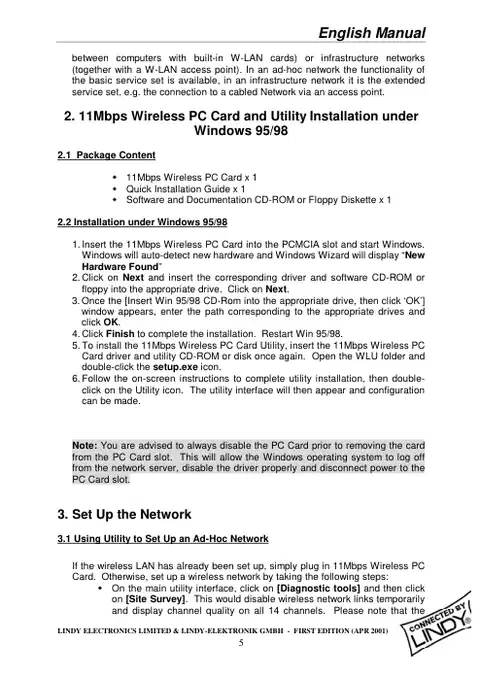
between computers with built-in W-LAN cards) or infrastructure networks (together with a W-LAN access point). In an ad-hoc network the functionality of the basic service set is available, in an infrastructure network it is the extended service set, e.g. the connection to a cabled Network via an access point. 2. 11Mbps Wireless PC Card and Utility Installation under Windows 95/98 2.1 Package Content
If the wireless LAN has already been set up, simply plug in 11Mbps Wireless PC Card. Otherwise, set up a wireless network by taking the following steps:
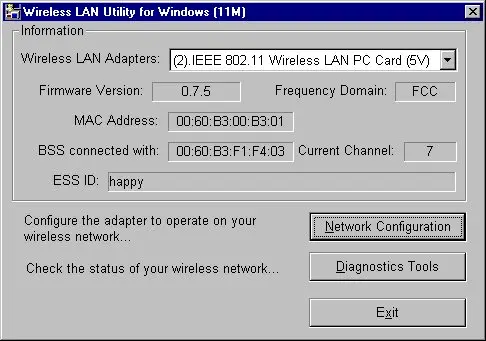
w On the main utility interface, click on [Diagnostic tools] and then click
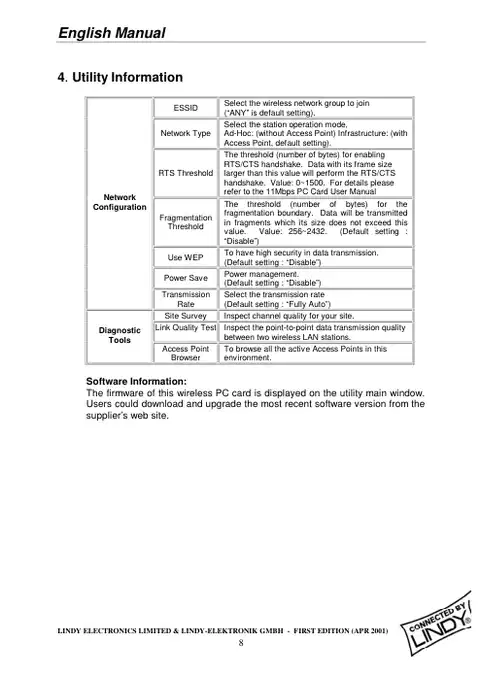
on [Site Survey]. This would disable wireless network links temporarily and display channel quality on all 14 channels. Please note that the
blue bars will indicate the quality of channel. Select a good channel for the Ad-Hoc Network.
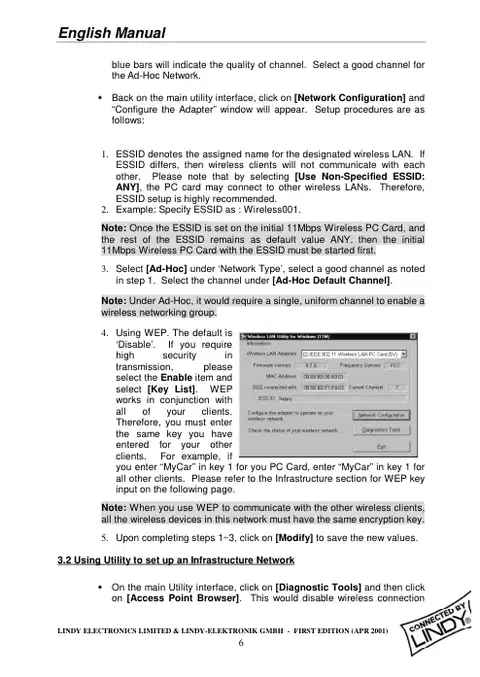
w Back on the main utility interface, click on [Network Configuration] and
“Configure the Adapter” window will appear. Setup procedures are as follows:
4. Using WEP. The default is ‘Disable’. If you require high security in transmission, please select the Enable item and select [Key List]. WEP works in conjunction with all of your clients. Therefore, you must enter the same key you have entered for your other clients. For example, if you enter “MyCar” in key 1 for you PC Card, enter “MyCar” in key 1 for all other clients. Please refer to the Infrastructure section for WEP key input on the following page.
w On the main Utility interface, click on [Diagnostic Tools] and then click
on [Access Point Browser]. This would disable wireless connection
temporarily and the subsequent display would show status for all available access points.
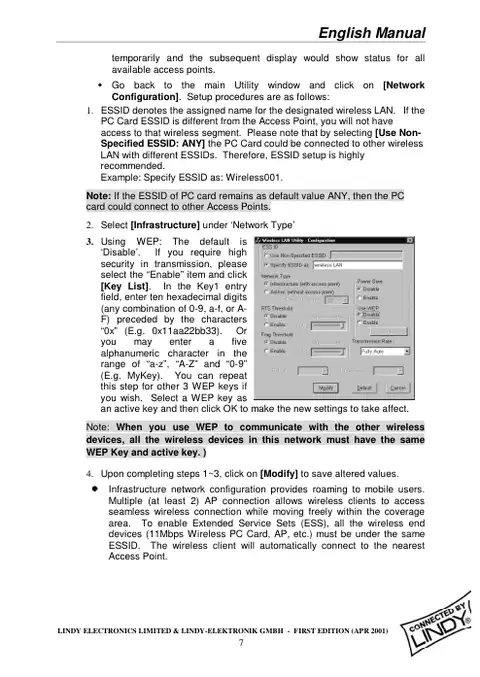
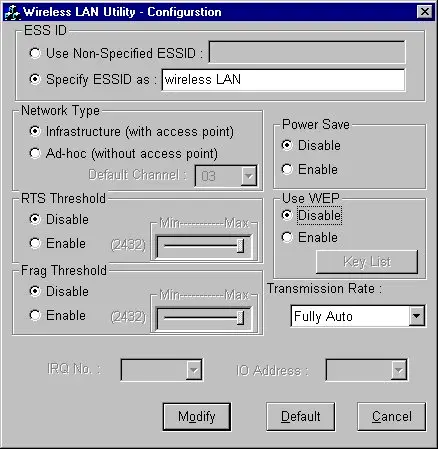
w Go back to the main Utility window and click on [Network
Configuration]. Setup procedures are as follows: 1. ESSID denotes the assigned name for the designated wireless LAN. If the PC Card ESSID is different from the Access Point, you will not have access to that wireless segment. Please note that by selecting [Use Non- Specified ESSID: ANY] the PC Card could be connected to other wireless LAN with different ESSIDs. Therefore, ESSID setup is highly recommended. Example: Specify ESSID as: Wireless001.
3. Using WEP: The default is ‘Disable’. If you require high security in transmission, please select the “Enable” item and click [Key List]. In the Key1 entry field, enter ten hexadecimal digits (any combination of 0-9, a-f, or A- F) preceded by the characters “0x” (E.g. 0x11aa22bb33). Or you may enter a five alphanumeric character in the range of “a-z”, “A-Z” and “0-9” (E.g. MyKey). You can repeat this step for other 3 WEP keys if you wish. Select a WEP key as an active key and then click OK to make the new settings to take affect.
l Infrastructure network configuration provides roaming to mobile users.
Multiple (at least 2) AP connection allows wireless clients to access seamless wireless connection while moving freely within the coverage area. To enable Extended Service Sets (ESS), all the wireless end devices (11Mbps Wireless PC Card, AP, etc.) must be under the same ESSID. The wireless client will automatically connect to the nearest Access Point.
Pages referenced in this manual — manufacturer, support and downloads.
Owners and our team usually reply within a day — and your question helps the next person too.
Be the first to ask — other owners or our team will answer.